Get the QRtimer app
One tap and it is on your home screen. No app store, nothing to update, under 2 MB.
The app is installed on this device. Open it from your home screen.
Android, iPhone, iPad, Windows, Mac and Chromebook.
How to install it on your device
Step-by-step help for every phone, tablet and computer
Android phone or tabletChrome, Samsung Internet, Edge or OperaYour device
- Open QRtimer in Chrome (or Samsung Internet) and tap Install app at the top of this page, if you see it.
- No button? In Chrome, tap the three dots ⋮ at the top right, then Install app (on some phones: Add to Home screen > Install).
- In Samsung Internet, tap the menu ☰ at the bottom, then Add page to > Home screen.
- Confirm with Install. The QRtimer icon appears on your home screen and in your app list.
iPhone or iPadSafari (Chrome and Edge also work on iOS 16.4 and later)Your device
- Open this page in Safari.
- Tap the Share button: the square with an arrow pointing up, at the bottom of the screen on iPhone or at the top on iPad.
- Scroll down the list and tap Add to Home Screen. If it is not there, tap Edit Actions at the bottom and add it.
- Keep "Open as Web App" switched on, then tap Add at the top right.
Windows, Mac, Chromebook or Linux computerGoogle Chrome or Microsoft EdgeYour device
- Click Install app on this page, if you see it.
- Or click the install icon (a screen with a down arrow) at the right end of the address bar.
- Or open the browser menu ⋮ and choose Cast, save and share > Install page as app (Chrome), or Apps > Install this site as an app (Edge).
- The app opens in its own window and can be pinned to the taskbar or dock.
Mac with SafarimacOS Sonoma (14) or laterYour device
- Open this page in Safari.
- Choose File > Add to Dock (or click Share in the toolbar, then Add to Dock).
- Click Add. The app opens from the Dock in its own window.
FirefoxFirefox on computers cannot install web appsYour device
- On Android, tap the menu ⋮ and choose Add to Home screen (or Install).
- On a computer, copy the link below and open it in Chrome or Edge to install, or keep using it in Firefox as a website: everything works the same.
Opened from WhatsApp, Facebook, Instagram or another appThe browser inside these apps cannot install appsYour device
- Tap the menu (⋮ or ···) in the corner and choose Open in browser, Open in Chrome or Open in Safari.
- No such option? Copy the link below and paste it into Chrome (Android) or Safari (iPhone).
- Then follow the steps for your phone on this page.
Why install it
On your home screen
One tap opens your events and sessions, full screen, without the browser's address bar.
Works with weak signal
Pages you opened before still load with no connection, and door check-ins made offline are sent when the signal returns.
Camera ready
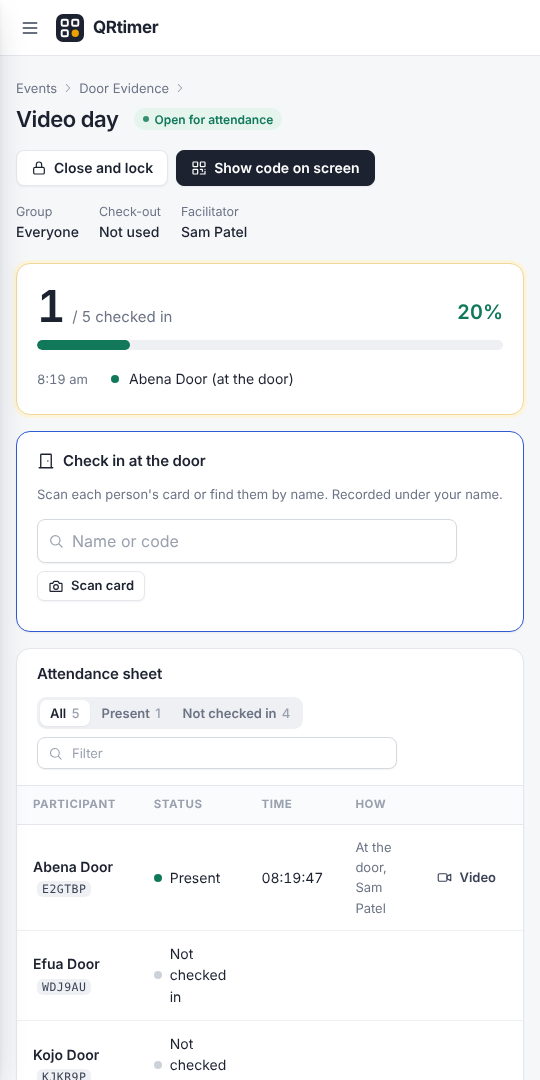
Check people in at the door, take reference photos and record short videos as evidence.
Always up to date
There is nothing to download from a store and no updates to install: you always get the latest version.
Participants do not need the app. They check in by scanning the session's QR code with their phone camera.
Questions about the app
Is the QRtimer app on Google Play or the App Store?
No. It installs straight from your browser in a few seconds, so there is no store, no account to create there and nothing to approve. It is the same app on every device and it updates itself.
Who needs to install the app?
Your team: owners, administrators, programme managers and facilitators who run sessions, check people in at the door, take photos and record videos. Participants do not need it: they scan the QR code with their phone camera.
What is better in the app than in the browser?
It opens from an icon on your home screen, full screen without the address bar, and starts faster. Pages you have opened before still open with no signal, and door check-ins made offline are kept on the phone and sent when the connection returns.
How much space does it take?
Usually less than 2 MB, far less than a store app. Photos and videos you record are uploaded and removed from the app's storage.
How do I update the app?
You don't need to. Each time it opens with a connection it checks for the latest version. Close it and open it again to be sure you have the newest one.
Why don't I see Install app?
The usual reasons: the page was opened inside WhatsApp, Facebook or another app (open it in Chrome or Safari instead); you are in a private or incognito window; the app is already installed (look on your home screen or app list); or the browser cannot install apps, such as Firefox on a computer. On Android, Chrome sometimes shows the button only after you have used the site for a short while: use the menu steps instead.
How do I remove the app?
Like any other app: press and hold the icon, then choose Remove or Uninstall. On a computer, open the app and use its menu to uninstall. Your account and records stay safe online.
Run your next session with an attendance list you can trust.
Set up an event, import your list and open attendance in about ten minutes. Free for your first event.
Start free with Google